> ## Documentation Index
> Fetch the complete documentation index at: https://docs.voicemetrics.ai/llms.txt
> Use this file to discover all available pages before exploring further.
# Create Client Account
> Quickly set up and manage client accounts to streamline onboarding and provide personalized access to your platform. Add client details, enable re-billing, and set up trial days and free call minutes for a smooth start.
## **Client Onboarding**
Get started quickly with two options: add clients manually or import from GHL.
* Add client from Agency Panel
* Customize plans and settings
* Assign licenses instantly
* Import clients from GHL
* Sync client automatically
* Verify sub-account
## **Manual Client Setup**
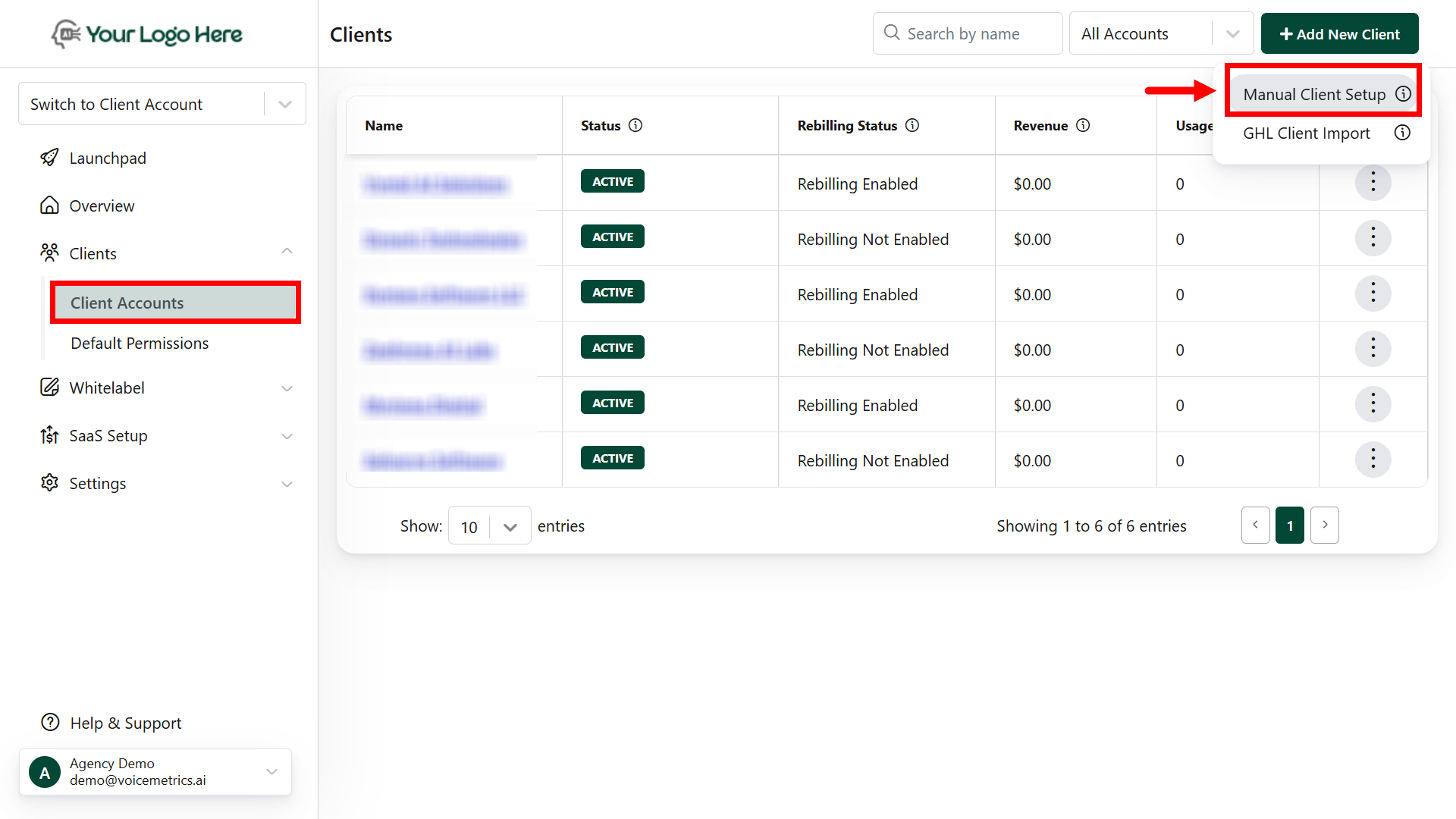
* Navigate to the **Clients** menu and click **Add New Client**.
* Now, tap the **Manual Client Setup**
* Enter the Client’s name and **Create Account.**
* Your Client Account will now be ready.
 ## **GHL Client Import**
Ensure the client is a **sub-account** in your GHL Panel before importing.
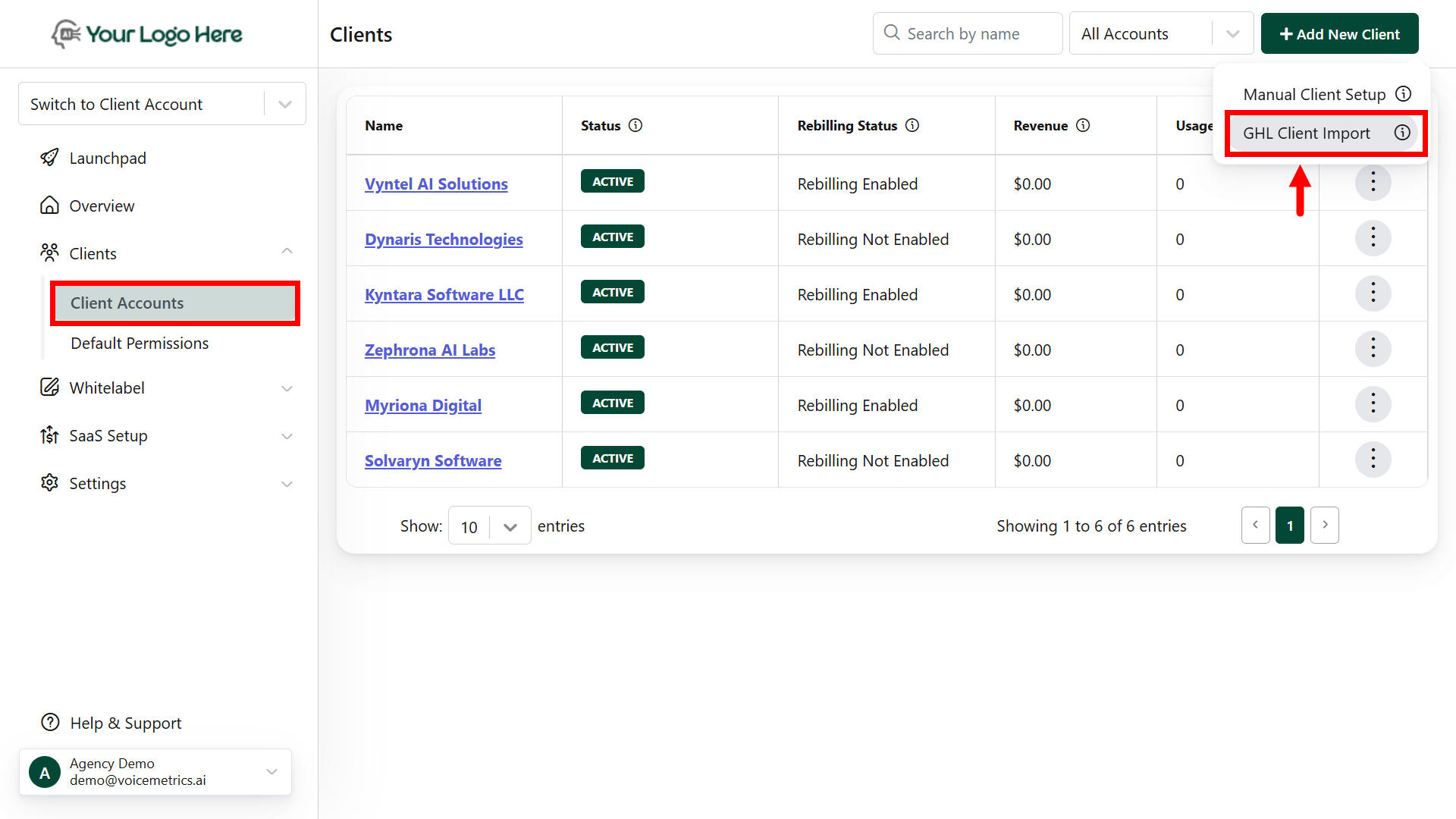
* Navigate to the **Client Account** menu and click **Add New Client**.
* Now, tap the **GHL Client Import**
## **GHL Client Import**
Ensure the client is a **sub-account** in your GHL Panel before importing.
* Navigate to the **Client Account** menu and click **Add New Client**.
* Now, tap the **GHL Client Import**
 * **Install GHL** from the Marketplace
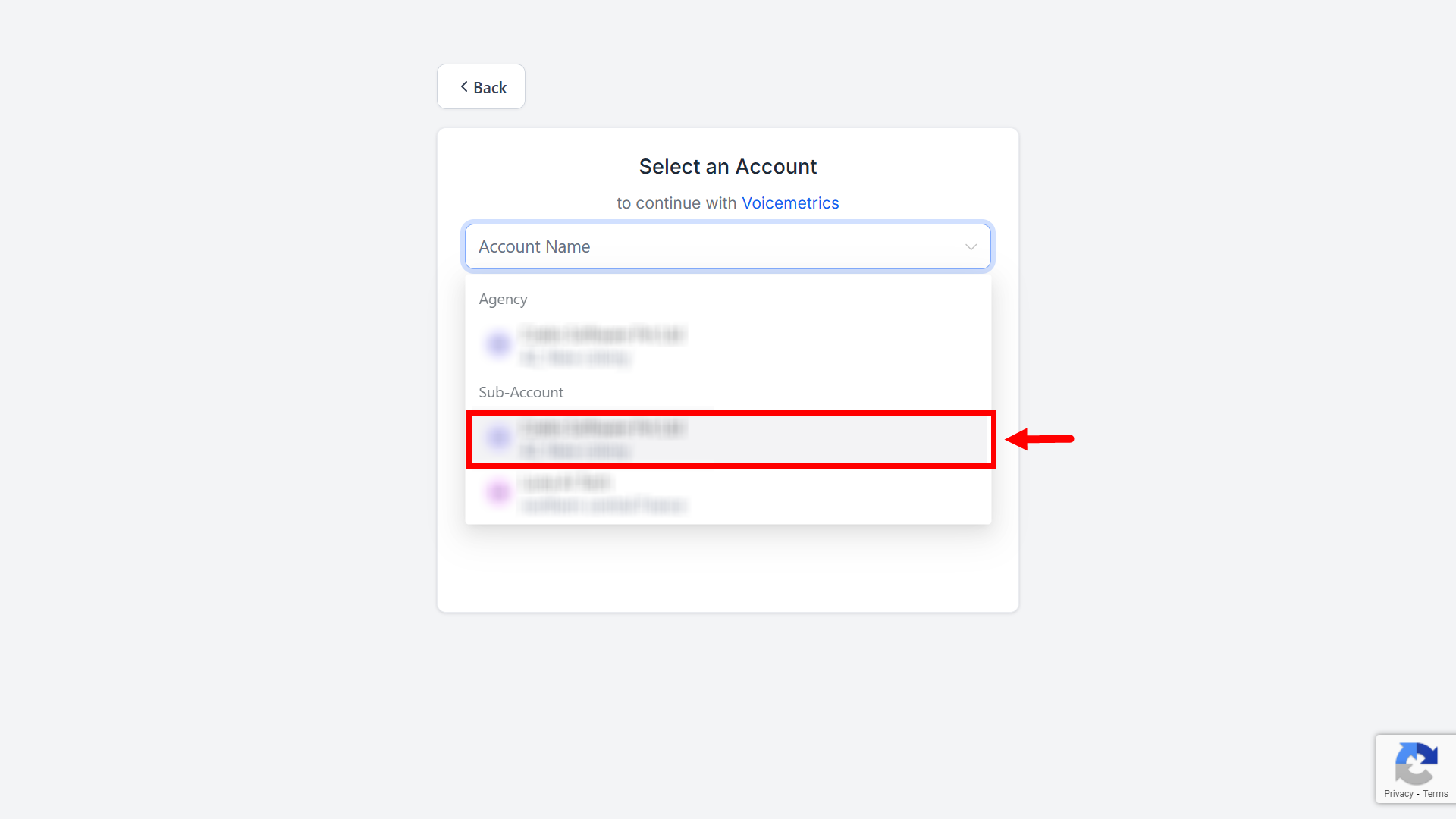
* Select your Client, which must be listed as **“Sub-account”** in GHL.
* Enable “**Voicemetrics Call**” and click **Proceed.**
* **Install GHL** from the Marketplace
* Select your Client, which must be listed as **“Sub-account”** in GHL.
* Enable “**Voicemetrics Call**” and click **Proceed.**
 ## **Enable Re-billing**
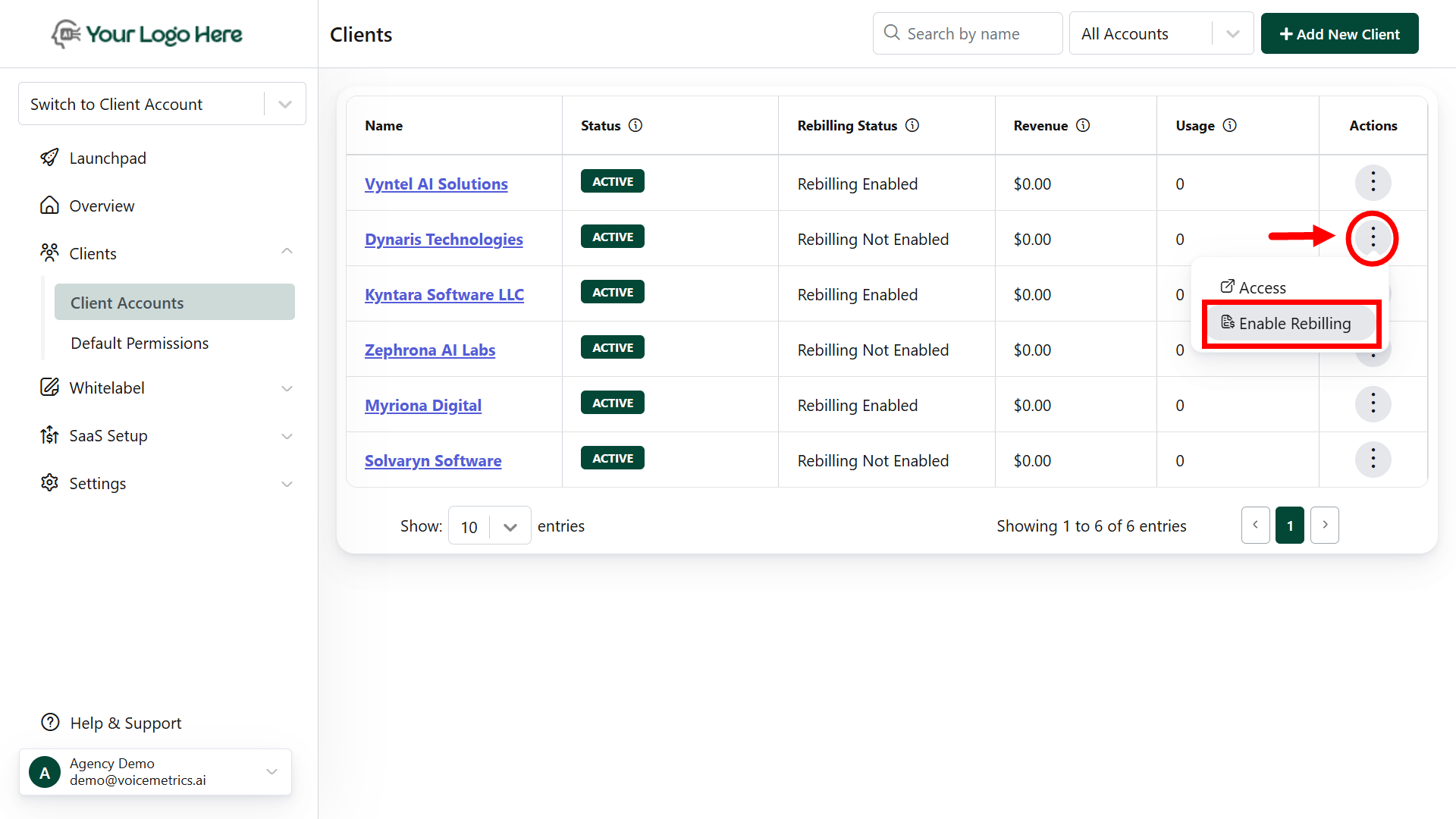
After the above steps, enable re-billing and set up your trial details.
Learn more about [Enable Re-Billing](https://docs.voicemetrics.ai/Rebilling/enablerebilling)
Your client’s **trial account is now active and ready to use.**
## **Enable Re-billing**
After the above steps, enable re-billing and set up your trial details.
Learn more about [Enable Re-Billing](https://docs.voicemetrics.ai/Rebilling/enablerebilling)
Your client’s **trial account is now active and ready to use.**
 **Recommended Next Steps:**
**Review Default Permissions**\
Go to the **Default Permissions** tab to enable or disable menus based on what you want your client to access.
**Assign Subscription Plans**\
Add one or more plans under the **Pricing** tab. The client will be prompted to subscribe once the trial period ends.
**Add client Users**\
Create a client user and grant them access to the platform. You can also set login credentials or send a password reset link.
**Recommended Next Steps:**
**Review Default Permissions**\
Go to the **Default Permissions** tab to enable or disable menus based on what you want your client to access.
**Assign Subscription Plans**\
Add one or more plans under the **Pricing** tab. The client will be prompted to subscribe once the trial period ends.
**Add client Users**\
Create a client user and grant them access to the platform. You can also set login credentials or send a password reset link.