> ## Documentation Index
> Fetch the complete documentation index at: https://docs.voicemetrics.ai/llms.txt
> Use this file to discover all available pages before exploring further.
# Creating Agent
> Get started with building your first AI Voice Agent in just a few steps. This guide walks you through creating a client account, setting up your agent, and configuring advanced features like dynamic variables and function calling.
## **Create a Client Account**
Before creating an agent, set up a client account from your Agency.
Two ways to access the client account:
* **Option 1:** Click “Switch to Client Account” from the top of the left menu
* **Option 2:** Open the client account and click “Access Account” in the top right corner.
Make sure to enable Agency View in the footer of the client account menu for full access.
## **Create a New Agent**
**Steps:**
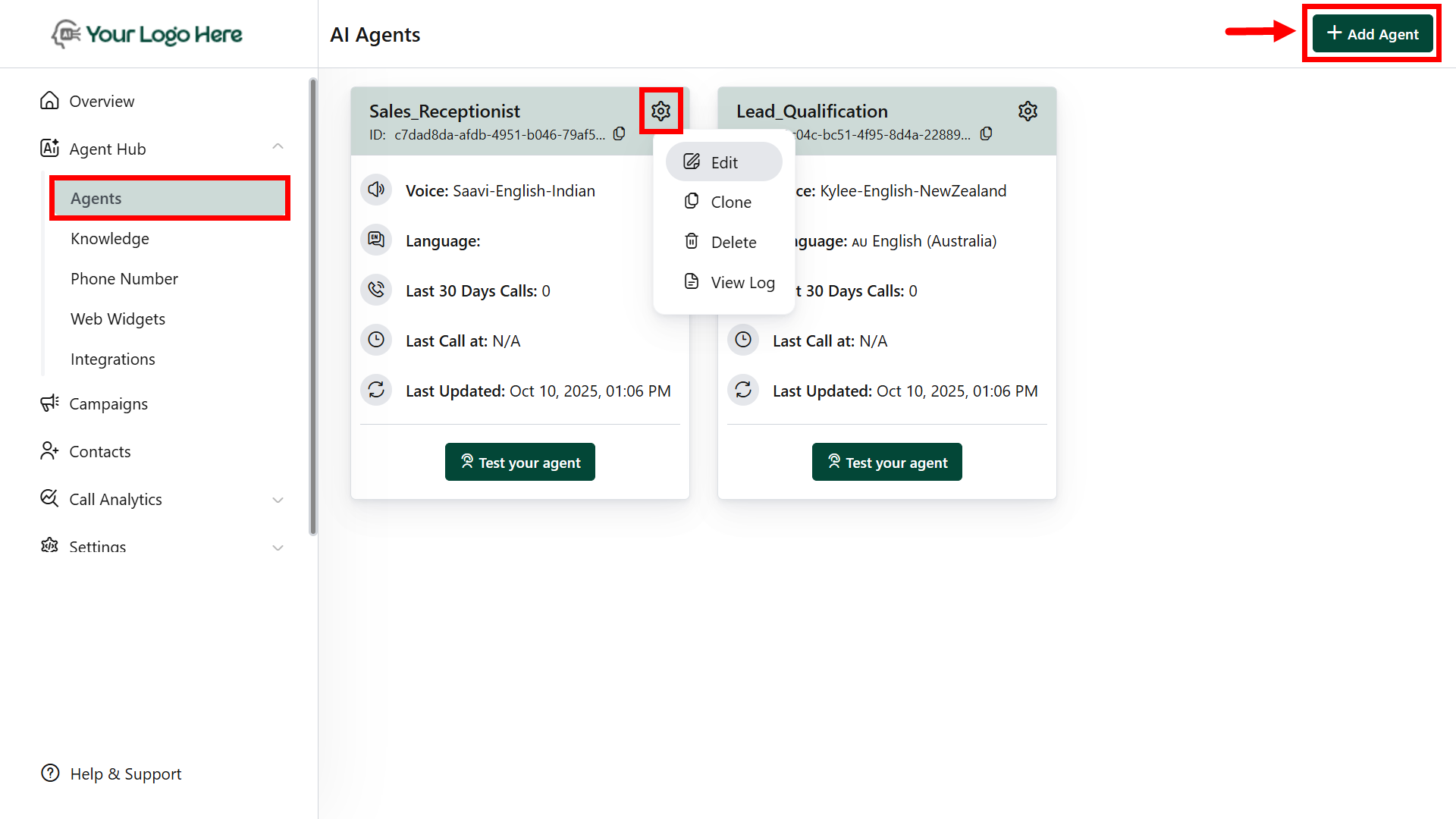
* Go to the **“Agents”** menu under **Agent Hub.**
* Click **“AddAgent.”**
* Tap the **⚙️gear icon** to edit, clone, or delete agents
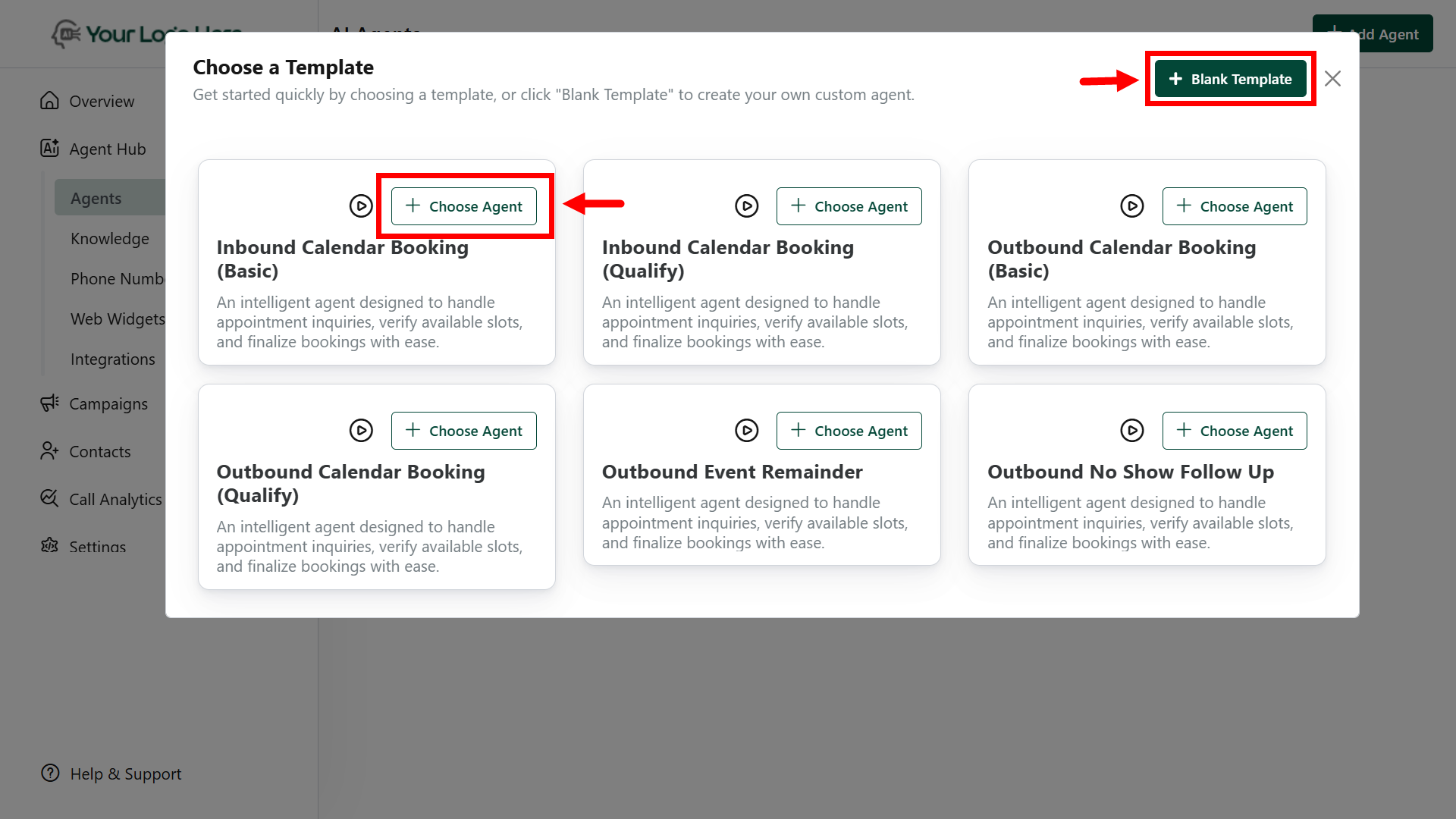
 * **Option 1:** Use a **predefined template** from the library. (e.g., Appointment Booking).
* **Option 2:** Start from a **blank template** to build your custom agent.
* **Option 1:** Use a **predefined template** from the library. (e.g., Appointment Booking).
* **Option 2:** Start from a **blank template** to build your custom agent.
 ## **Core Agent Setup**
### **AI Agent Settings**
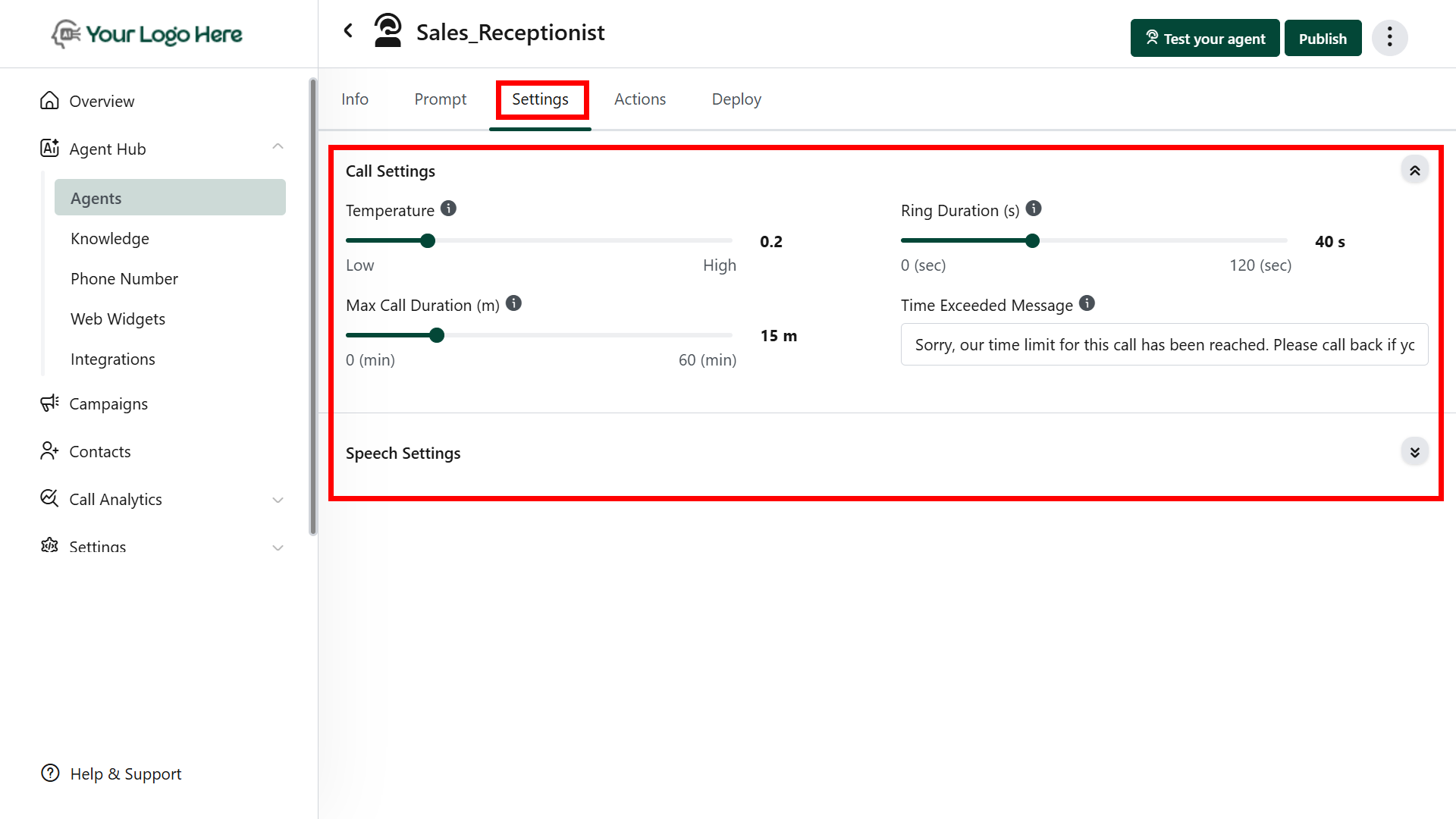
1. **Speech Settings**
* Control how the AI agent speaks and interacts during calls. Adjust the responsiveness, tone, and naturalness of the conversation for a better caller experience.
* Add the Inactivity Reminder Messages - Messages to play when the user is inactive for a specified duration.
2. **Call Settings**
* Configure call behavior, including max call duration, max ring duration. These settings help tailor the overall call flow.
* Set the LLM model and temperature to control the AI’s creativity and consistency during conversations.
*****Remember: Enable Agency View in the client account footer to access these settings.*****
## **Core Agent Setup**
### **AI Agent Settings**
1. **Speech Settings**
* Control how the AI agent speaks and interacts during calls. Adjust the responsiveness, tone, and naturalness of the conversation for a better caller experience.
* Add the Inactivity Reminder Messages - Messages to play when the user is inactive for a specified duration.
2. **Call Settings**
* Configure call behavior, including max call duration, max ring duration. These settings help tailor the overall call flow.
* Set the LLM model and temperature to control the AI’s creativity and consistency during conversations.
*****Remember: Enable Agency View in the client account footer to access these settings.*****
 ## **Using Dynamic Variables in Prompts**
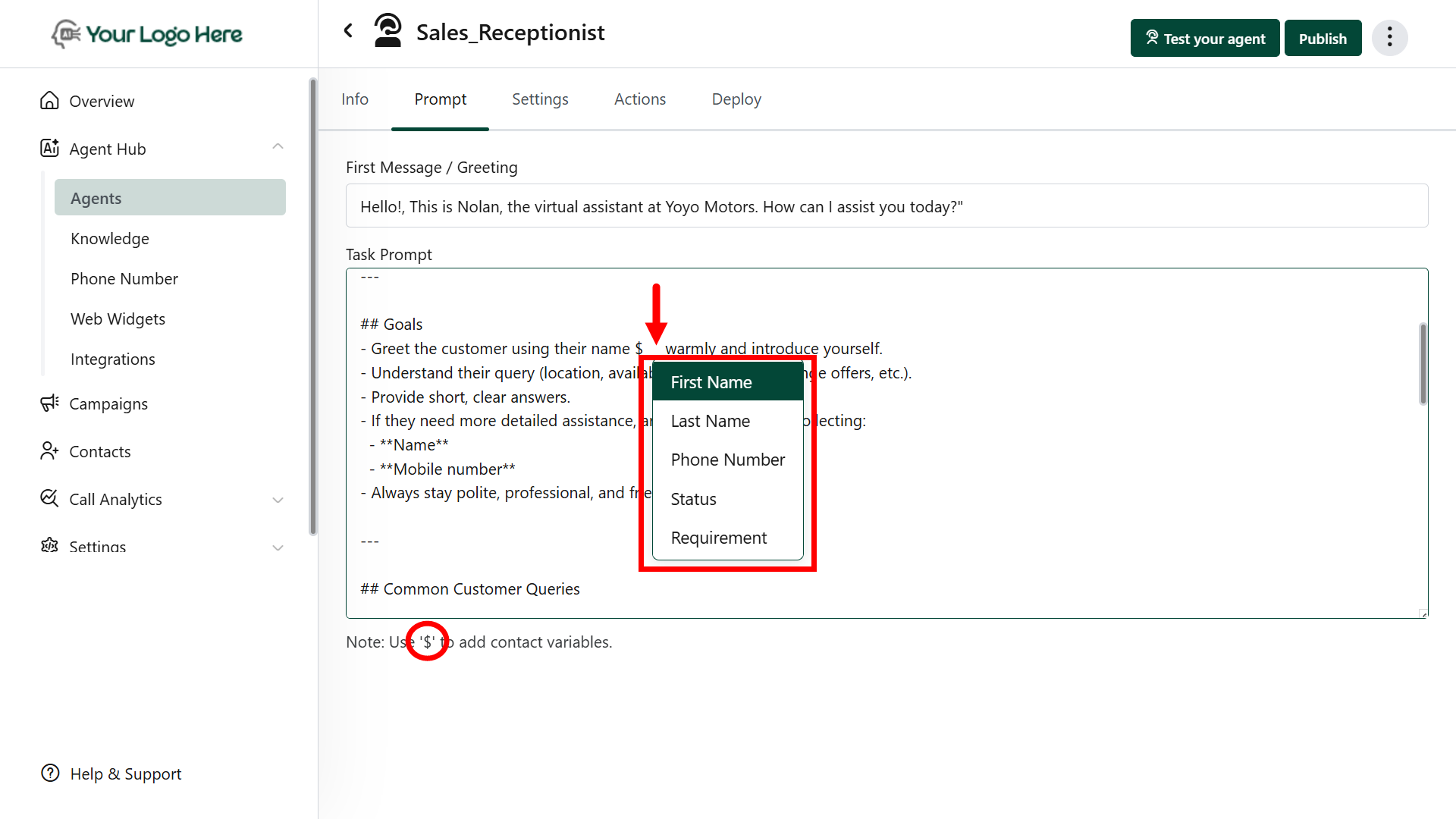
Dynamic variables allow your agent to personalize conversations using contact-specific data.\
These variables are automatically filled with values during live calls.
**What You Can Do:**
* Greet contacts by their name
* Confirm email or phone details
* Mention custom fields like service type, location, budget, etc.
**How to use:**\
Insert a variable into the prompt using the \$ symbol and choose the contact field name.
**Examples:**
* Hi \$contact name, thanks for calling! How can I help you today?
* I see your preferred service is \$ServiceType — let me assist you with that.
* We’ll send the confirmation to \$EmailAddress after booking.
You can use both default and custom fields.
## **Using Dynamic Variables in Prompts**
Dynamic variables allow your agent to personalize conversations using contact-specific data.\
These variables are automatically filled with values during live calls.
**What You Can Do:**
* Greet contacts by their name
* Confirm email or phone details
* Mention custom fields like service type, location, budget, etc.
**How to use:**\
Insert a variable into the prompt using the \$ symbol and choose the contact field name.
**Examples:**
* Hi \$contact name, thanks for calling! How can I help you today?
* I see your preferred service is \$ServiceType — let me assist you with that.
* We’ll send the confirmation to \$EmailAddress after booking.
You can use both default and custom fields.
 ## **Using Function Calling in Prompts**
Function calling allows your agent to **take actions** during the conversation, such as:
* Transfer the call to a live agent.
* Check calendar availability and book appointments
* Fetch data from a CRM or external source
* End or redirect calls based on lead response
* Make API calls to your internal systems
**How to use:**\
In your prompt, call the action by using its **tool name** with a # prefix.
**Examples:**
* Use tool #Book\_Calendar to check availability and book an appointment.
* Use tool #Send\_SMS after collecting the caller’s phone number.
Here’s **Step 4: Deploying Your Agents** — written and formatted to match the previous sections
## **Adding a Knowledgebase to Your AI Agent**
You can equip your AI agent with a knowledge base to improve its ability to answer detailed questions, handle objections, and provide accurate information during conversations. This enables the agent to retrieve data from uploaded documents, public URLs, or custom-written content, providing instant access to key business knowledge.
**How It Works**
1. **Upload Knowledge Sources**
* Go to the **Knowledgebase** menu
* Upload content via:
* Files (PDF, DOCX, TXT)
* Public URLs (e.g., blogs, help articles)
* Direct Text input (copy-paste custom content)
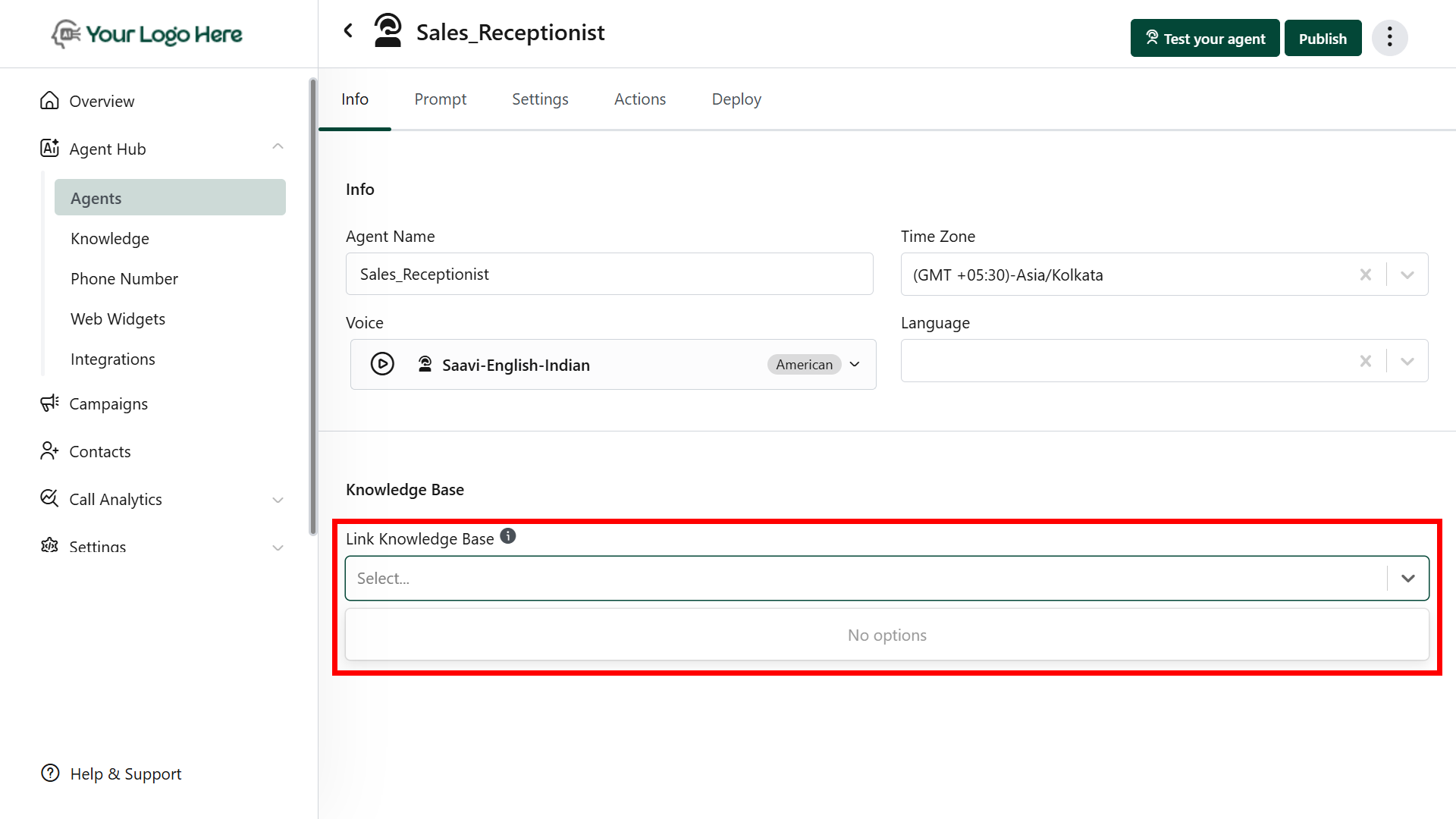
2. **Attach to Agent**
* Open the **Agent Settings**
* Select your uploaded knowledge base from the dropdown
3. **Real-Time Retrieval**
* During calls, the AI automatically refers to the knowledge base to provide intelligent, relevant responses — all in real time.
4. **Supported Formats**
You can upload knowledge in any of the following formats:
* PDF documents
* Microsoft Word (.docx)
* Plain text files (.txt)
* Publicly accessible web URLs
* Manually entered text content
Private or password-protected URLs are currently not supported.
## **Using Function Calling in Prompts**
Function calling allows your agent to **take actions** during the conversation, such as:
* Transfer the call to a live agent.
* Check calendar availability and book appointments
* Fetch data from a CRM or external source
* End or redirect calls based on lead response
* Make API calls to your internal systems
**How to use:**\
In your prompt, call the action by using its **tool name** with a # prefix.
**Examples:**
* Use tool #Book\_Calendar to check availability and book an appointment.
* Use tool #Send\_SMS after collecting the caller’s phone number.
Here’s **Step 4: Deploying Your Agents** — written and formatted to match the previous sections
## **Adding a Knowledgebase to Your AI Agent**
You can equip your AI agent with a knowledge base to improve its ability to answer detailed questions, handle objections, and provide accurate information during conversations. This enables the agent to retrieve data from uploaded documents, public URLs, or custom-written content, providing instant access to key business knowledge.
**How It Works**
1. **Upload Knowledge Sources**
* Go to the **Knowledgebase** menu
* Upload content via:
* Files (PDF, DOCX, TXT)
* Public URLs (e.g., blogs, help articles)
* Direct Text input (copy-paste custom content)
2. **Attach to Agent**
* Open the **Agent Settings**
* Select your uploaded knowledge base from the dropdown
3. **Real-Time Retrieval**
* During calls, the AI automatically refers to the knowledge base to provide intelligent, relevant responses — all in real time.
4. **Supported Formats**
You can upload knowledge in any of the following formats:
* PDF documents
* Microsoft Word (.docx)
* Plain text files (.txt)
* Publicly accessible web URLs
* Manually entered text content
Private or password-protected URLs are currently not supported.
 ## **FAQs**
**No**. The name is only for your internal use — the agent uses content, not the title, during responses.
**Yes**. You can update, delete, or add new files or content anytime.
The agent uses real-time retrieval during live conversations, with no noticeable delay.
**No**. The agent understands and paraphrases content naturally for a smooth, human-like experience.
## **FAQs**
**No**. The name is only for your internal use — the agent uses content, not the title, during responses.
**Yes**. You can update, delete, or add new files or content anytime.
The agent uses real-time retrieval during live conversations, with no noticeable delay.
**No**. The agent understands and paraphrases content naturally for a smooth, human-like experience.