> ## Documentation Index
> Fetch the complete documentation index at: https://docs.voicemetrics.ai/llms.txt
> Use this file to discover all available pages before exploring further.
# Function Calling (Actions)
> Actions are the automation tools behind your voice agent. They allow your agent to perform tasks, not just talk, such as booking appointments, transferring calls, sending emails/SMS, and even triggering custom workflows via API. Think of Actions as “function blocks” that you can link to your agent’s prompt. When the prompt calls an Action, it’s like pressing a button to get something done automatically.
## **Why Use Actions?**
Without Actions, your agent is limited to just conversation.
With Actions, your agent can:
* Automatically check calendar availability and book appointments
* Transfer calls to real humans
* Collect and send lead data
* Send confirmation SMS or emails
* Trigger CRM/webhook integrations and much more
**Use Actions to turn conversations into conversions.**
## **Available Action Types**
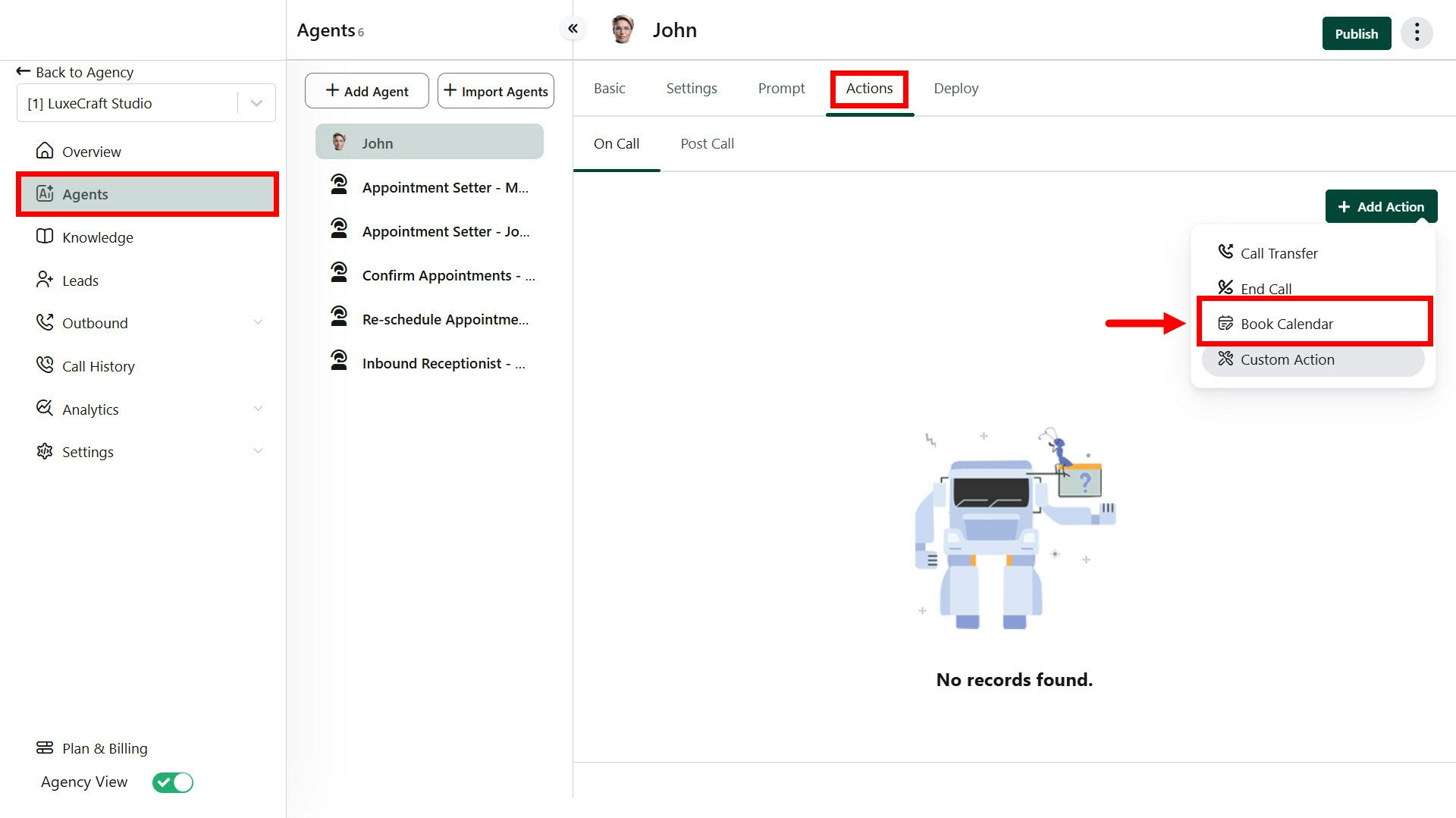
1. **End Call Action**
* Gracefully ends the conversation when the agent completes its task.
2. **Call Transfer Action**
* Transfers the call to another phone number, agent, or department.
3. **Calendar Booking Action**
* Book an appointment using your connected calendar service.
4. **Extract Call Info Action**
* Captures caller details like name, email, or custom inputs during the conversation.
5. **Send Call Event Action**
* Triggers a webhook or event immediately after the call ends (e.g., to CRM or automation platforms).
6. **Send Email Action**
* Send an email during or after the call with relevant information.
7. **Send SMS Action**
* Sends a text message automatically (e.g., confirmation, links, updates).
8. **Custom Action**
* Executes custom API calls or workflows defined by your client.
 ## **How It Works**
1. **Create Actions**
* From the **Actions tab** in the client account, you can create any of the supported action types.
2. **Link to Prompt**
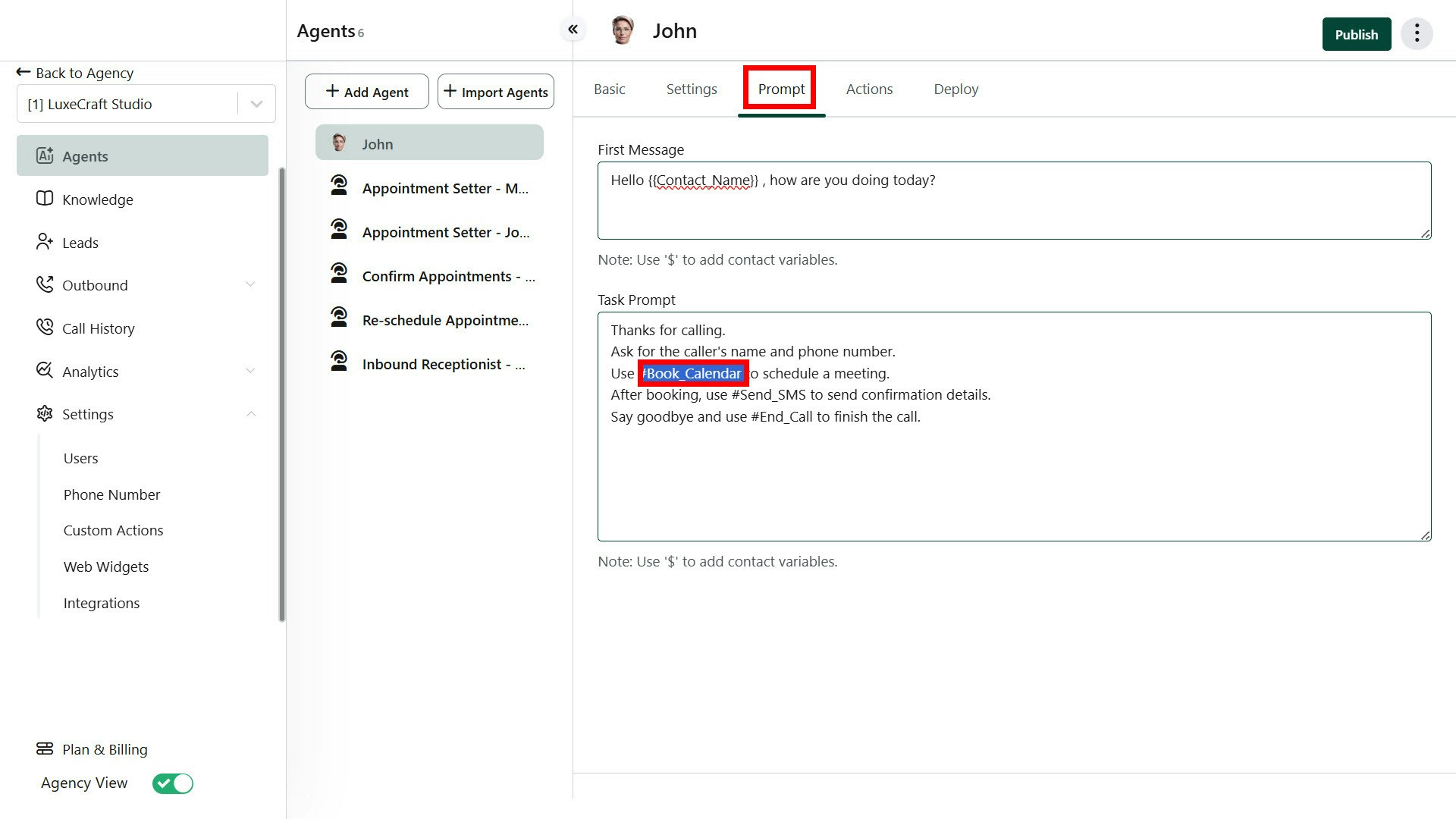
* Inside your agent’s prompt, reference the Action by using the defined name (e.g., #Send\_SMS or #Book\_Calendar).
3. **Trigger Automatically**
* When the agent reaches that part of the conversation, the linked Action will execute in real time.
```Example Prompt (Using Actions) theme={null}
Hi, thanks for calling.
Ask for the caller's name and phone number.
Use #Book_Calendar to schedule a meeting.
After booking, use #Send_SMS to send confirmation details.
Say goodbye and use #End_Call to finish the call.
```
## **How It Works**
1. **Create Actions**
* From the **Actions tab** in the client account, you can create any of the supported action types.
2. **Link to Prompt**
* Inside your agent’s prompt, reference the Action by using the defined name (e.g., #Send\_SMS or #Book\_Calendar).
3. **Trigger Automatically**
* When the agent reaches that part of the conversation, the linked Action will execute in real time.
```Example Prompt (Using Actions) theme={null}
Hi, thanks for calling.
Ask for the caller's name and phone number.
Use #Book_Calendar to schedule a meeting.
After booking, use #Send_SMS to send confirmation details.
Say goodbye and use #End_Call to finish the call.
```
 Each Action must be **created and configured first** before linking it in the prompt.
* You can reuse Actions across multiple agents.
* **Custom Actions** allow powerful API-based workflows tailored to your client's business logic.
Each Action must be **created and configured first** before linking it in the prompt.
* You can reuse Actions across multiple agents.
* **Custom Actions** allow powerful API-based workflows tailored to your client's business logic.