> ## Documentation Index
> Fetch the complete documentation index at: https://docs.voicemetrics.ai/llms.txt
> Use this file to discover all available pages before exploring further.
# Email Templates
> Email templates help you deliver branded, consistent communication to your clients across key platform events. You can fully customize system-generated emails to reflect your agency’s tone, style, and professionalism.
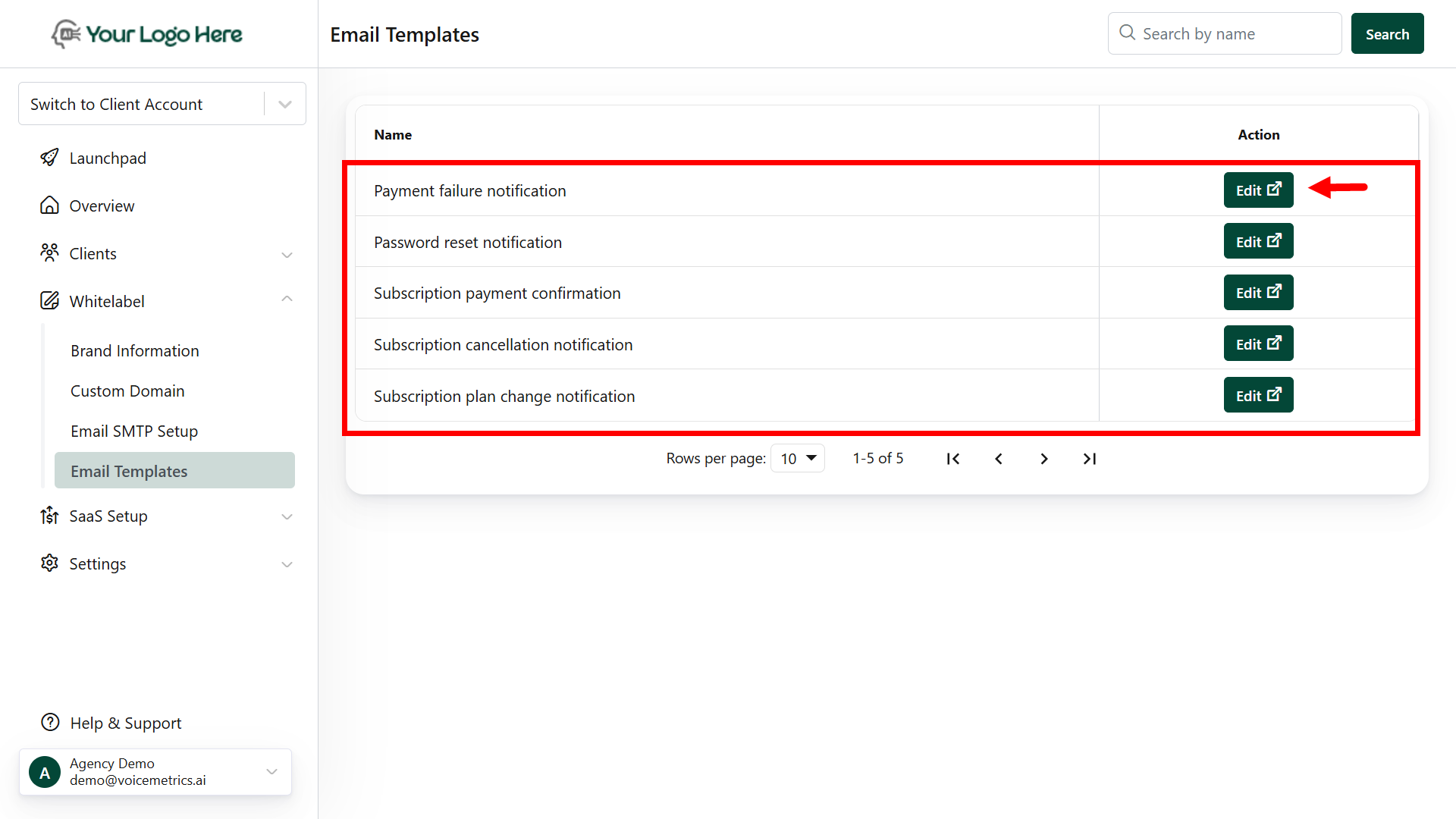 ## **Available Templates**
Customize the following notification emails:
* **Payment Failure Notification**\
Notifies clients when a payment attempt fails, prompting them to update payment details.
* **Password Reset Notification**\
Sent when a client requests a password reset, including a secure link to reset their credentials.
* **Subscription Payment Confirmation**\
Confirms successful payment for the client’s subscription plan, including plan and invoice details.
* **Subscription Cancellation Notification**\
Informs clients that their subscription has been canceled, with optional instructions to resubscribe.
* **Subscription Plan Change Notification**\
Confirms when a client switches plans, showing new plan details and billing changes.
## **Steps to Customize Your Email Templates**
Go to **White Label** > **Email Templates.**
Click **Edit** on any template you wish to modify.
* Update the **Subject Line** to reflect your tone.
* Edit the **Email Body** to include your brand’s language.
* Use **HTML formatting** or styling options to align with your design.
Type \$ variable (eg, \$$** variables (e.g., \$client\_name, \$subscription\_plan) to insert client-specific details dynamically.
Click **Send Test Email** and select **Send Now**.
* Check your inbox to verify the layout and content.
* Didn't receive it? Try the **RESEND** button and check your spam folder.
Once you're satisfied, click **Save & Publish** to apply the changes.
**Notes:**
* **Personalization:** Use \$ tokens to automatically insert values like client name, plan, payment amount, etc.
* **Brand Voice:** Keep language consistent with your agency’s tone — professional, helpful, and clear.
* **Responsiveness:** Templates are mobile-optimized, but test them on multiple devices for best results.
* **Fallback:** If a variable isn't available (e.g., missing plan name), the platform will use a default or leave it blank.
## **Available Templates**
Customize the following notification emails:
* **Payment Failure Notification**\
Notifies clients when a payment attempt fails, prompting them to update payment details.
* **Password Reset Notification**\
Sent when a client requests a password reset, including a secure link to reset their credentials.
* **Subscription Payment Confirmation**\
Confirms successful payment for the client’s subscription plan, including plan and invoice details.
* **Subscription Cancellation Notification**\
Informs clients that their subscription has been canceled, with optional instructions to resubscribe.
* **Subscription Plan Change Notification**\
Confirms when a client switches plans, showing new plan details and billing changes.
## **Steps to Customize Your Email Templates**
Go to **White Label** > **Email Templates.**
Click **Edit** on any template you wish to modify.
* Update the **Subject Line** to reflect your tone.
* Edit the **Email Body** to include your brand’s language.
* Use **HTML formatting** or styling options to align with your design.
Type \$ variable (eg, \$$** variables (e.g., \$client\_name, \$subscription\_plan) to insert client-specific details dynamically.
Click **Send Test Email** and select **Send Now**.
* Check your inbox to verify the layout and content.
* Didn't receive it? Try the **RESEND** button and check your spam folder.
Once you're satisfied, click **Save & Publish** to apply the changes.
**Notes:**
* **Personalization:** Use \$ tokens to automatically insert values like client name, plan, payment amount, etc.
* **Brand Voice:** Keep language consistent with your agency’s tone — professional, helpful, and clear.
* **Responsiveness:** Templates are mobile-optimized, but test them on multiple devices for best results.
* **Fallback:** If a variable isn't available (e.g., missing plan name), the platform will use a default or leave it blank.